
Mobile App

Your CallCenturion number, in your pocket

The CallCenturion Mobile app gives existing customers call history, voicemail, a dial keypad and account tools for their business number — on iPhone and Android.

You need a CallCenturion account to use the app. Don’t have one? Start your free trial.
What the App Does

Everything you need to manage your CallCenturion business number, right from your phone.

Call History

Every answered, missed and voicemail call on your business number, with date-range, status and direction filters and one-tap call back.

Voicemail

Listen to messages left on your number and read the transcript — no need to dial into a voicemail box.

Keypad

Dial out showing your CallCenturion number as the caller ID, straight from your mobile. Present your business number on every outbound call.

Contacts

Keep your business contacts in the app and call them directly using your CallCenturion number.

Account

View your profile and verified caller IDs, and delete your account and data if you wish — all from within the app.

Up and Running in Minutes

No password needed — we send a one-time sign-in code to your email each time you log in on a new device.

Install the App

Download the CallCenturion app from the App Store (iPhone) or Google Play (Android).

Enter Your Email

Open the app and enter the email address you used when you signed up for CallCenturion.

Get Your Code

Tap Send me a sign-in code — we’ll email you a 6-digit code. No password needed.

Verify & Stay Signed In

Enter the code and tap Verify. You stay signed in on that device — no need to repeat this each session.

 Code Not Arriving?

Check your spam or junk folder and make sure you’re using the email address you signed up with. Tap Resend after the countdown expires. Codes are valid for a few minutes and can only be used once.

Using the App

A quick guide to each section of the app.

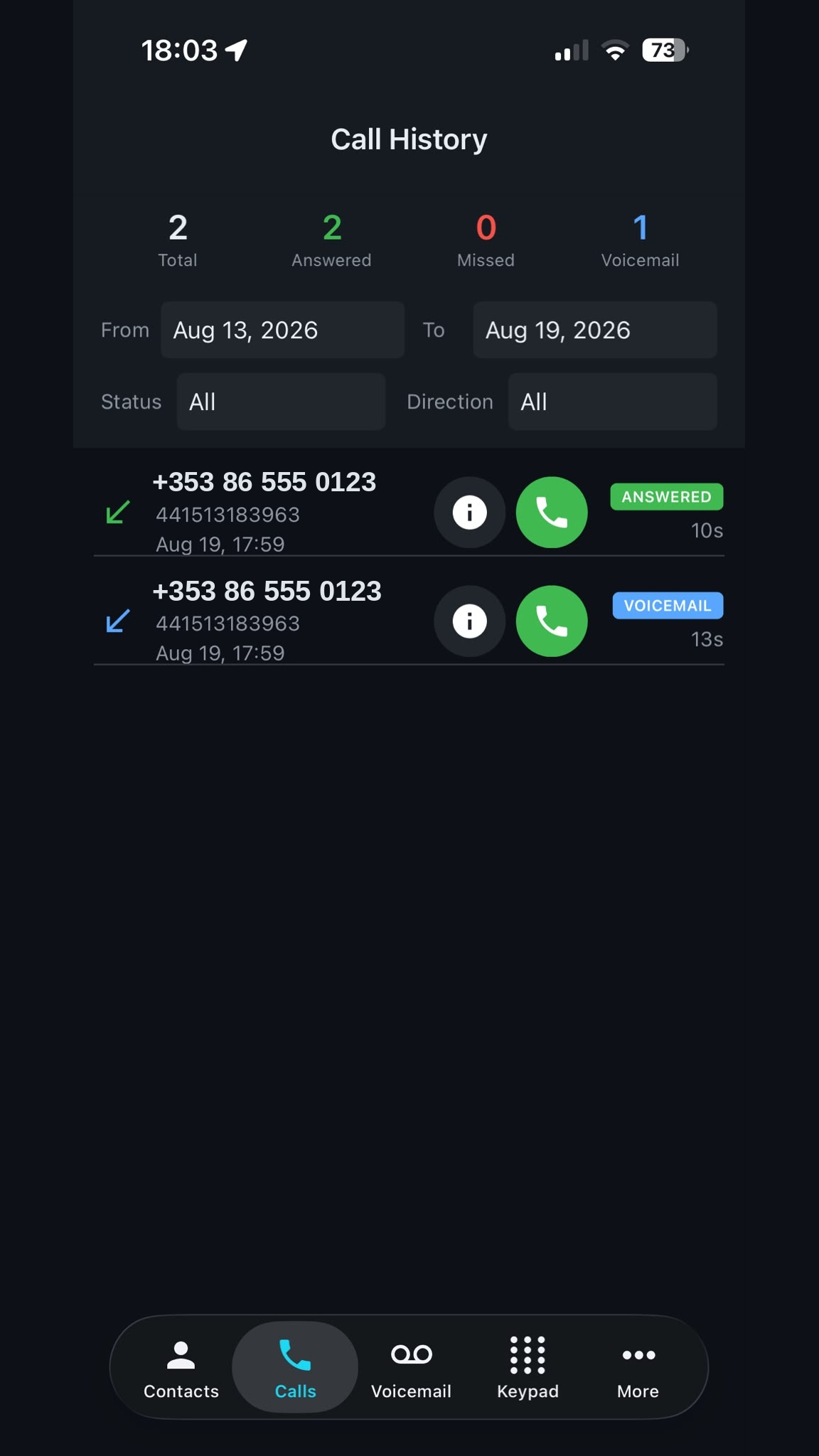
Calls tab showing summary counters and a filterable list of calls

 Calls

The Calls tab shows summary counters for Total, Answered, Missed, and Voicemail calls. Use the From and To date pickers to filter by date range, and the Status and Direction dropdowns to narrow the list further. Tap the icon on any row to see full call details, or tap the green phone icon to call that number back immediately.

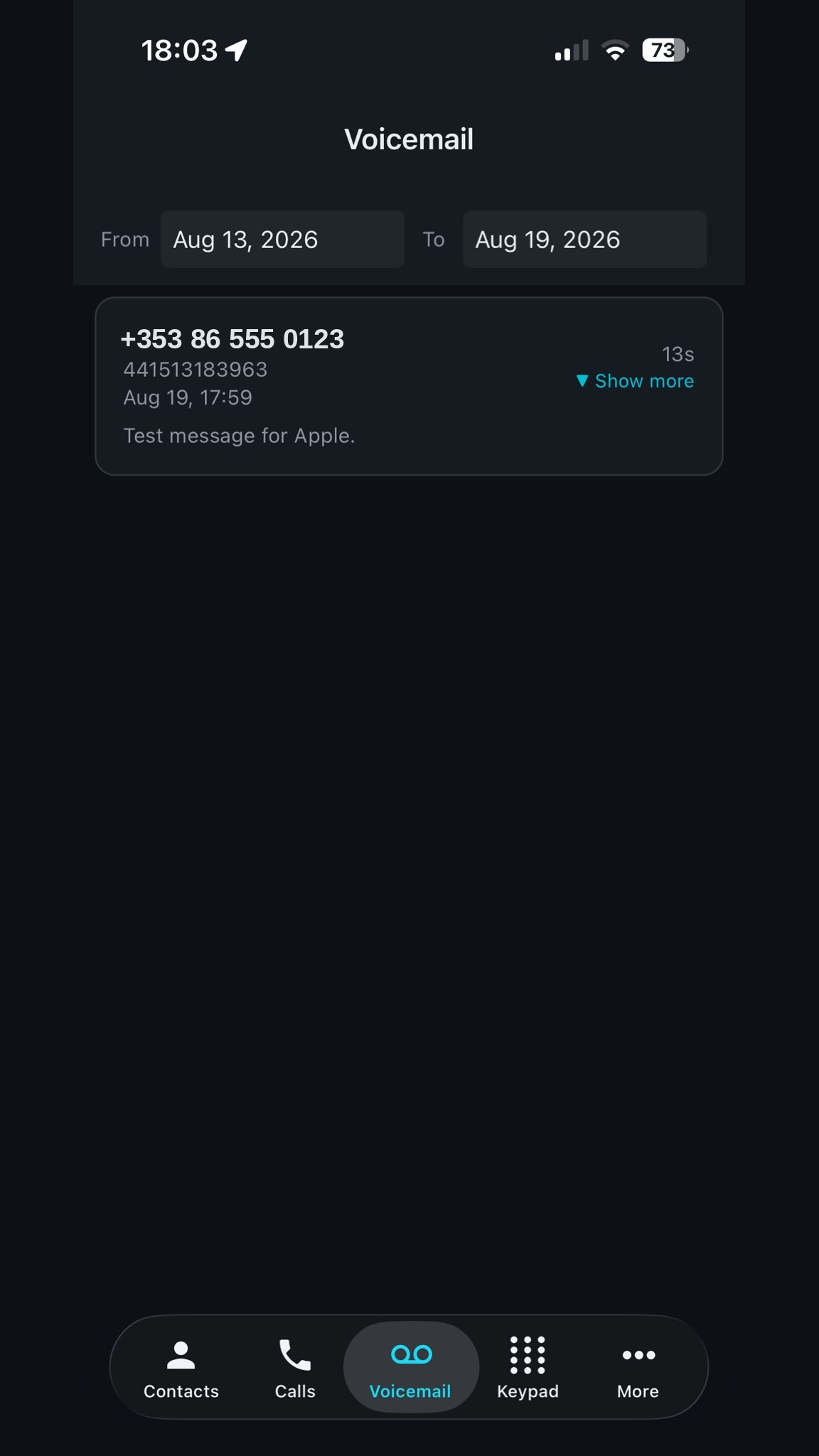
Voicemail tab listing messages with play controls and transcripts

 Voicemail

The Voicemail tab lists messages by date. Use the date-range filter at the top to narrow results. Tap Show more on any message to expand it, then press play to listen. The transcript appears below the audio player so you can read the message without sound. Duration is shown per message.

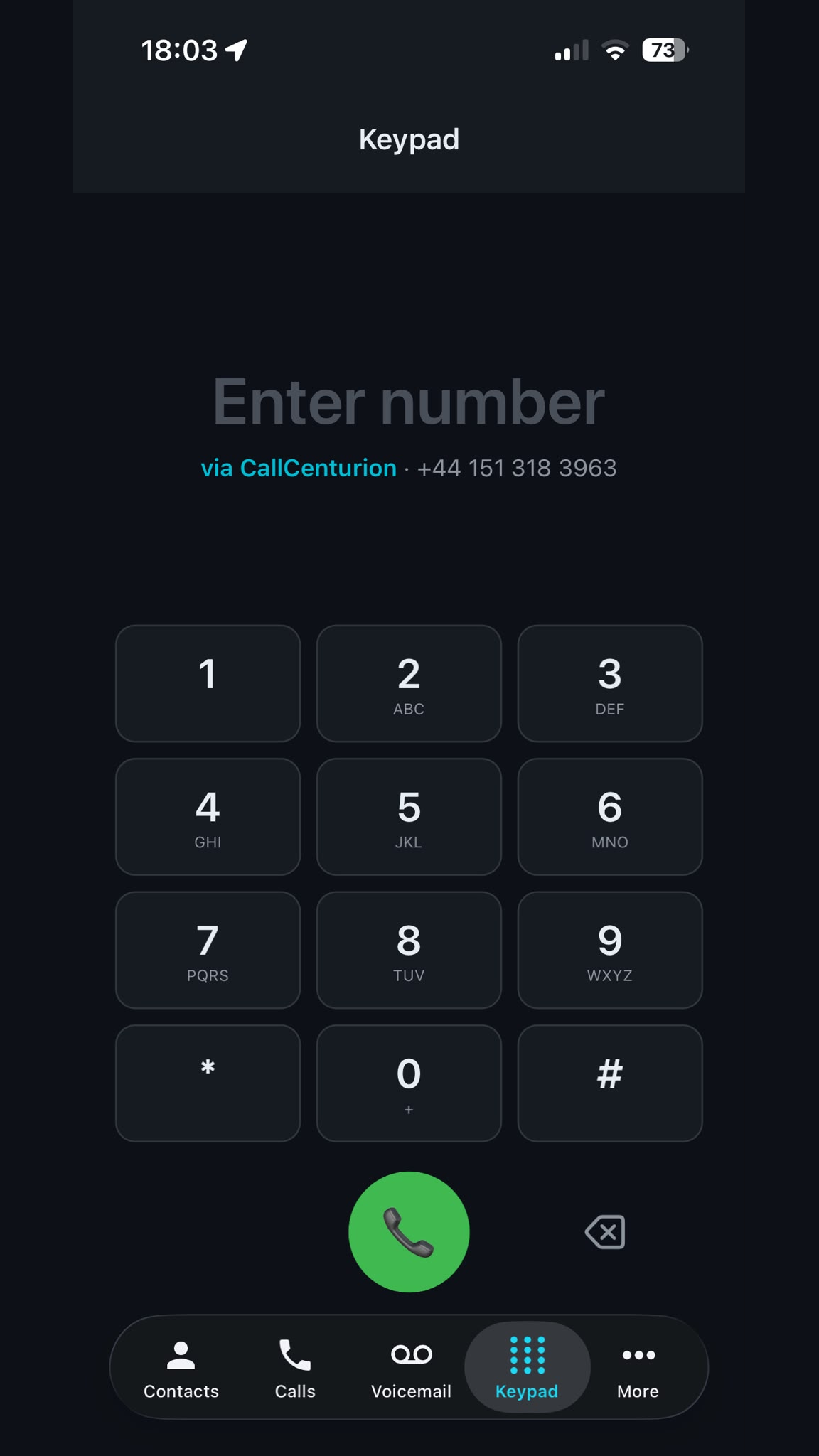
Keypad tab with a dial pad and the outbound caller ID shown above

 Keypad

Your outbound caller ID is displayed above the dial pad under Enter number. Dial the number you want to call, then tap the call button. Use the backspace key to correct any digits. The call connects through your CallCenturion number, so the recipient sees your business number — not your personal mobile.

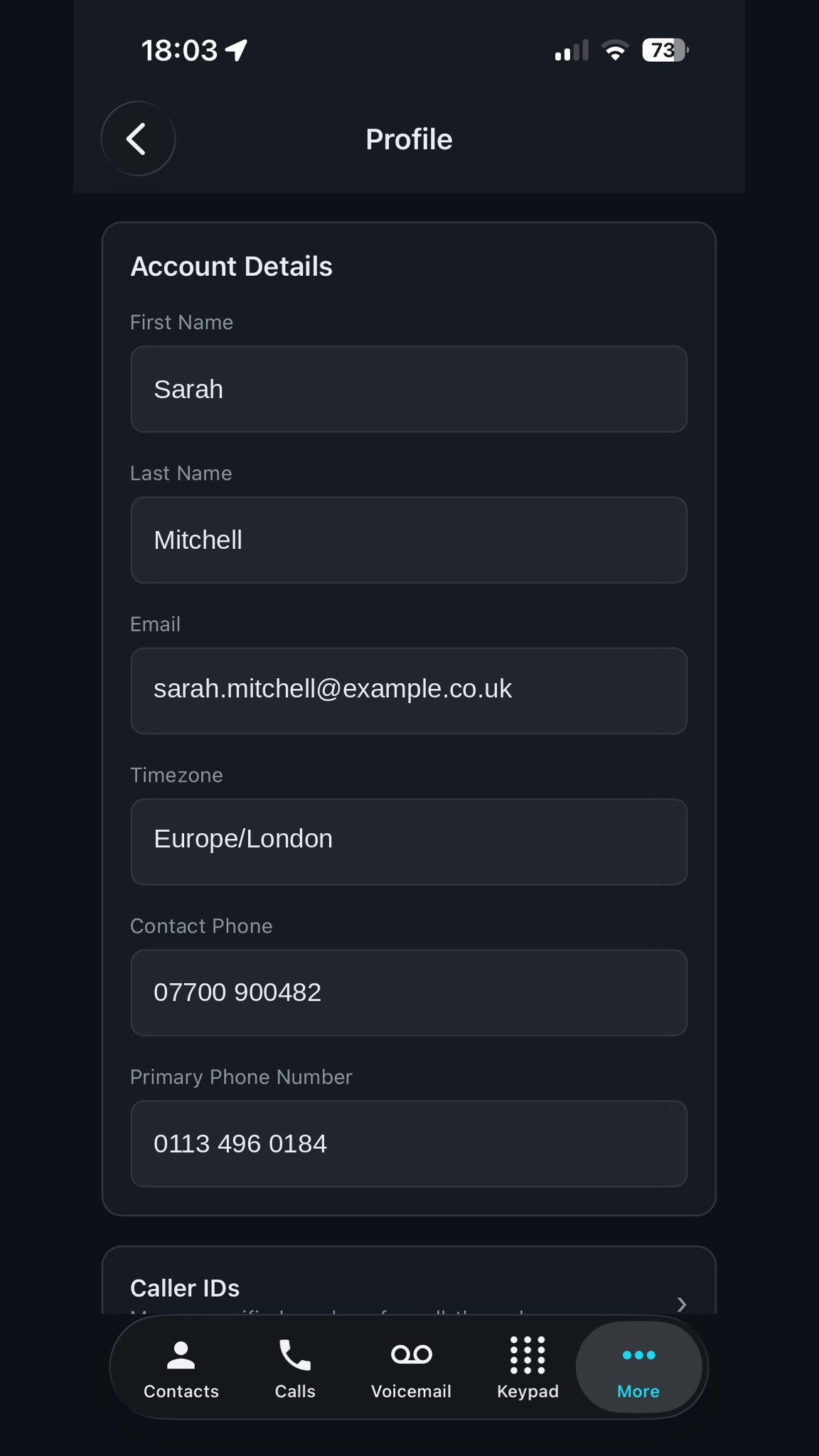
Profile screen showing account details and caller ID management

 More → Profile

Tap More then Profile to view your account details and manage your verified caller IDs. To remove your account and all associated data, tap More → Delete Account. You can also request deletion via the web at callcenturion.com/data-deletion.

Frequently Asked Questions

Need Help?

Email us at info@callcenturion.com or use the contact form. We’re happy to help.

Privacy Policy Terms of Service Data Deletion

Get the app today.

Available on iPhone and Android for all CallCenturion customers.

Free for all customers iPhone & Android No password needed